Reference board and level notes
Pin concept art, screenshots, notes and to-do lists right inside each level.
Every level gets its own Reference Board and Level Notes (with a built-in checklist). Both are saved inside the level and stay strictly editor-only—nothing clutters your Outliner or ships in the game.
Find them on the Annotate tab, or click Board Tab (Window → Reference Board) to pop both out side by side in a dockable window. Both views stay in sync live.
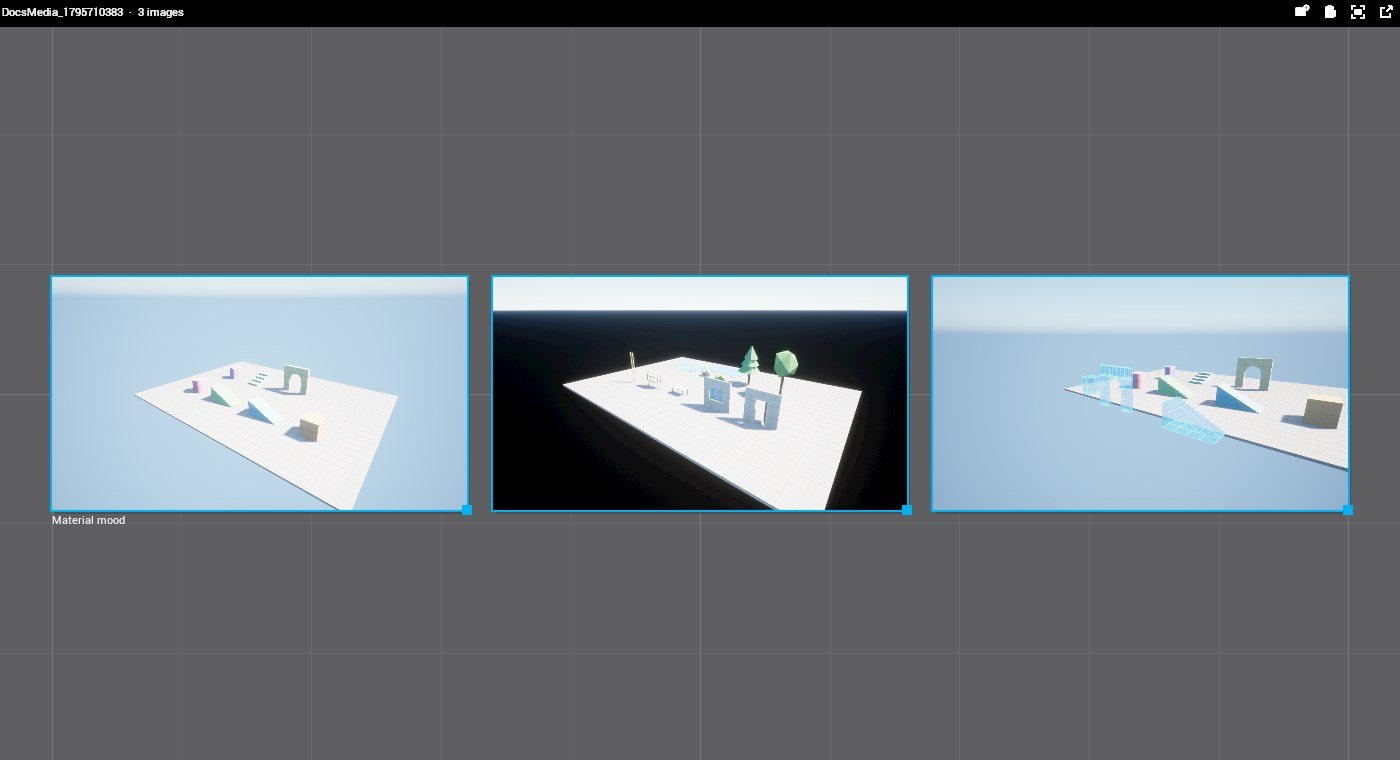
Adding images
- Drag image files straight from Explorer onto the board—they drop right under your cursor at their original aspect ratio.
- Paste with Ctrl+V from Explorer, a browser, or Windows Snipping Tool (Win+Shift+S). Pasted images save as
Pasted_<time>.png. - Right-click empty space and choose Add Images.
Any image added from outside your project is copied into Reference/<LevelName>/ in your project folder. Commit that folder alongside the level so teammates see the same board.
Navigating the board
| Action | Result |
|---|---|
| Mouse wheel | Zoom toward the cursor. |
| Drag empty space (or right / middle drag) | Pan around. |
| F (or double-click empty space) | Frame everything on the board. |
Arranging images
| Action | Result |
|---|---|
| Click an image | Select it. Drag to move, or drag a corner to resize (aspect ratio locked). |
| Shift / Ctrl + click | Add to selection and move images together. |
| Ctrl+A | Select all images. |
| Del | Remove selected images from the board (files stay on disk). |
| Ctrl+Z | Undo moves, resizes, additions and removals. |
Right-click any image for View Large (or double-click it), Edit Caption, Bring to Front, Send to Back, Show in Explorer and Remove. Right-clicking empty space gives you Add Images, Paste Here, Frame All and Open Reference Folder.
Level Notes
Type in the notes box and it saves with the level as you go. Notes stay out of Unreal's undo stack so pressing Ctrl+Z in the viewport won't wipe out your writing.
Right underneath is a to-do list: type a task and hit Enter to add it, check it off when done, click its text to rename it (clearing the text removes it), or click x to delete it. The header tracks how many items are done.