Ground, tunnels and bridges
Roads that hug the terrain, carve tunnels and cuttings, and span gaps with bridges.
Roads respond live to the blockout around them—move a hill or raise a box and the road adapts immediately. All of these options live under Details → Ground.
Follow Ground
Turn on Follow Ground to drop the road's points onto whatever LD surfaces sit beneath them. Point Heights then act as offsets above the ground, and Smooth Grade rounds out sudden bumps.
For example, draw a Dirt Track over a mound with Follow Ground on and it drapes right over it; move the mound later and the track follows.
Cut Terrain
Turn on Cut Terrain and the road carves a clear corridor through any Solid shapes in its path, from the underside of the deck up to Clearance (500 cm by default). Batter angles the side walls of the cut in degrees.
- Sunk below a floor: creates an open cutting.
- Through a hill or rock: carves a tunnel. Enable Tunnel Lining to add lined walls and a ceiling wherever terrain remains overhead.
(Tip: to tunnel straight through a hill, turn Follow Ground off or lower your points—otherwise the road will just climb over the top instead.)
Roads crossing over a cutting are never carved by it.
Bridges
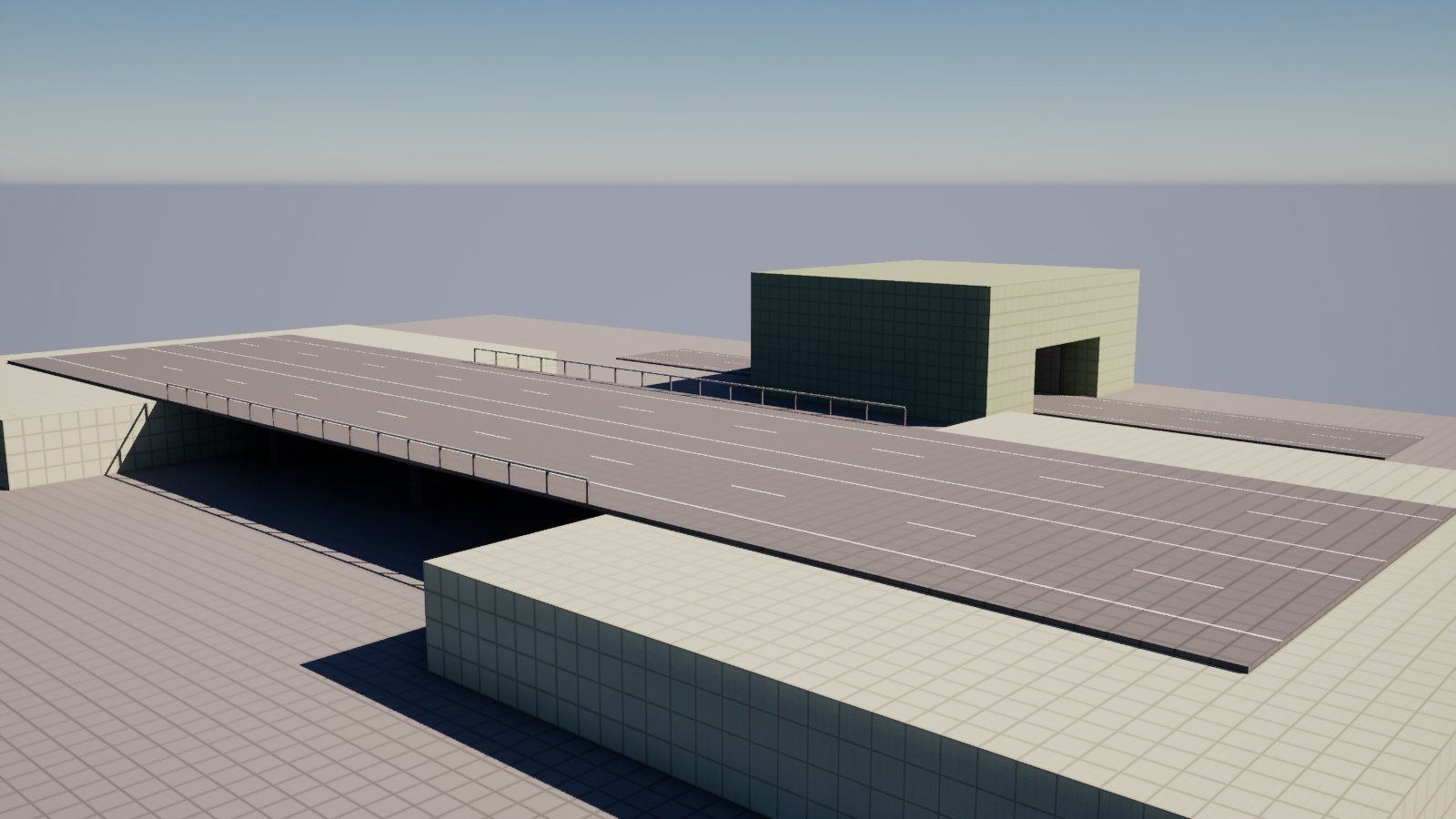
With Bridges enabled (on by default), any stretch of road more than Bridge Height (150 cm) above the ground below automatically becomes a bridge:
- Supports drop down to the ground every Support Spacing (15 m by default), sized to match the deck.
- Railings run along both edges.
- Abutments form at each end where the thickened deck meets the ground.
Draw a highway between two tall rooftops across a gap, and supports and railings appear strictly over the span.
Packaged games
A road saves the ground heights, bridge spans and tunnel cuts it found in the editor directly with the level. Packaged builds construct the road from that cached data without tracing the world, so what you see in the editor is always what ships.