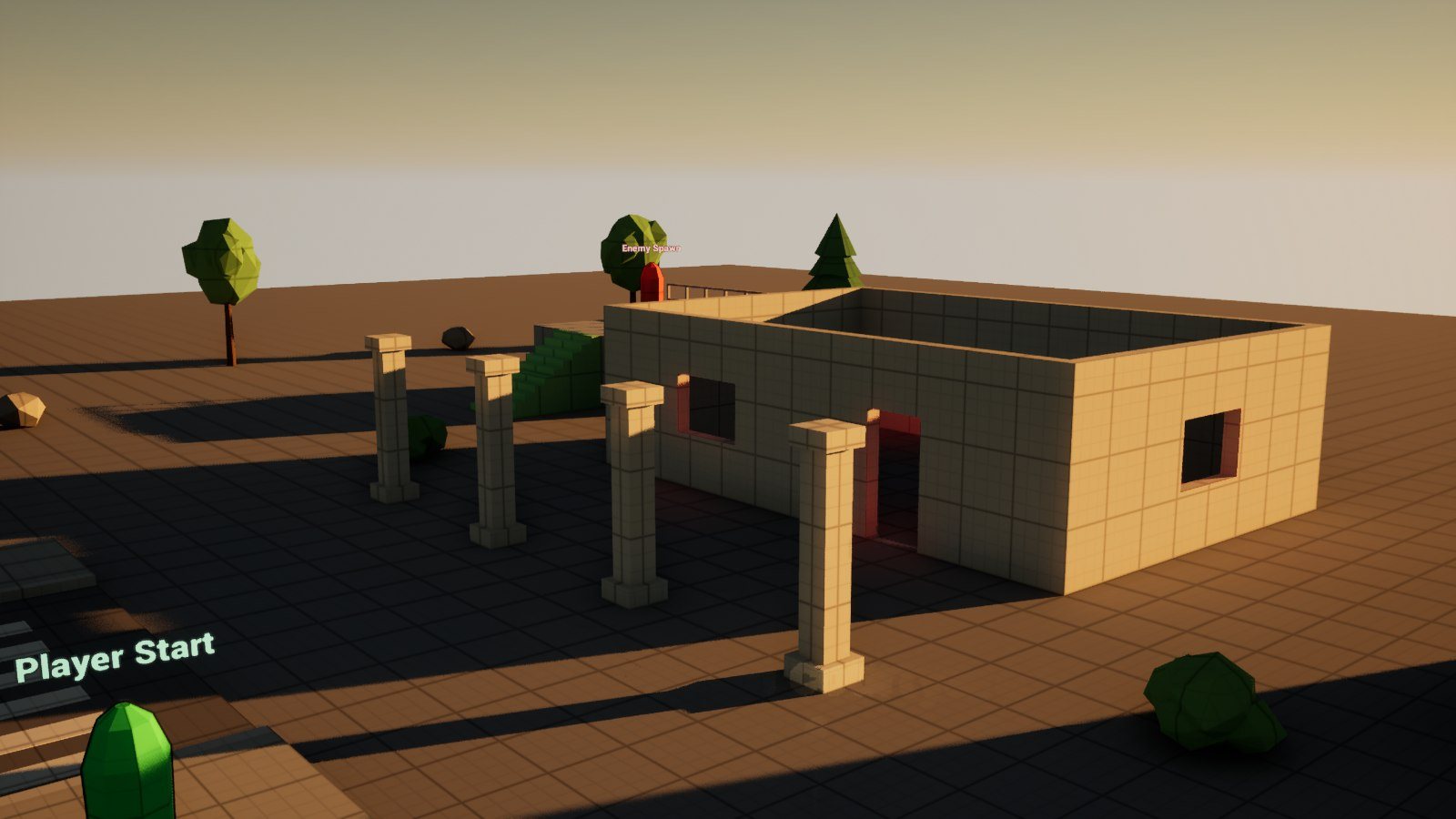
Categories and colours
Colour-code your blockout so everyone on the team reads a level the same way at a glance.
LD categories
Set LD Category (Details → Appearance) to tag what a shape represents. Each category applies a distinct colour so players and teammates can immediately tell what's walkable, climbable or out of bounds:
| Custom | Floor | Wall | Cover |
| Interactable | Hazard | Climbable | Objective |
| Ceiling | Platform | Door / Entrance | Window |
| Vault / Mantle | Breakable | Water | Moving Platform |
| Stealth / Hiding | Pickup / Loot | Secret | Set Dressing |
| Out of Bounds |
Choosing Custom lets you pick any colour via the shape's Color property.
Part colours
Several shapes support multiple colours at once—like a Tree's trunk and canopy, a Doorway's frame and door, a Window's frame and glass, a Table's top and base, Shelving's frame and shelves, or a Road's asphalt, curbs, sidewalks and markings. You'll find these under the shape's own colour settings (Frame Color, Door Color, Glass Color, and so on).
Everything runs through a single material (M_KamiLD_Grid) and one draw call per shape, so even levels with thousands of pieces stay fast. Part colours survive cutting, Collapse and Bake.
If you assign a Material Override that doesn't read the plugin's part-colour data, the whole shape uses that override material instead.
The grid
The blockout material renders a clean grid across every shape. Grid Size controls the square size in cm, and World Aligned Grid locks the grid to world space so neighbouring pieces match up cleanly. Lines fade out smoothly at a distance to avoid shimmering.
If you've swapped a shape to another material and want the grid back, select it and hit Grid Mat on the Material tab.