Player Metrics
Define your player's size and movement once, and every helper builds to match.
Player Metrics drive Player Scale, Player-Sized tiles, the steep-slope overlay, Measure and Jump Check Pro.
Setting them up
Click Metrics on the Annotate tab (or go to Project Settings → Plugins → Kami's LD Tools Player Metrics). The Annotate tab also shows a live one-line summary—for instance, Player 192 cm · jumps 250 cm up, 714 cm across · walks up 45°, steps 45 cm.
Metrics save to Config/DefaultGame.ini so your whole team shares them via source control. Tweak any value and open Player Scales and Jump Checks update immediately.
| Setting | Default | What it sets |
|---|---|---|
| Capsule Radius | 42 cm | Half the player's width. |
| Capsule Half Height | 96 cm | Half the player's standing height. |
| Crouched Half Height | 40 cm | Half the crouched height (never shorter than the radius, matching Unreal's capsule). |
| Eye Height | 160 cm | Camera eye level. |
| Jump Z Velocity | 700 cm/s | Upward launch speed. |
| Gravity | 980 cm/s² | World gravity (fold any custom Gravity Scale into this). |
| Run Speed | 500 cm/s | Horizontal speed used for jump distance. |
| Max Walkable Slope | 44.765° | Angles steeper than this are flagged as unwalkable. |
| Max Step Height | 45 cm | Tallest step the player can walk straight onto. |
| Mantle Reach | 0 cm | Extra reach above jump height for mantling (0 disables mantling). |
| Comfort Margin | 25 cm | Extra clearance padded onto player-sized doors and corridors. |
| Headroom | 30 cm | Extra clearance above the player's head for doors and corridors. |
| Tight Share | 0.85 | Fraction of max jump reach before a jump is flagged as tight. |
The defaults match Unreal's Third Person template (a 192 cm character jumping 250 cm high and 714 cm across).
Pro: Read from Character
On the Annotate tab, pick your Character blueprint and click Read from Character. It pulls your capsule dimensions and Character Movement values (Jump Z Velocity, Gravity Scale × world gravity, Max Walk Speed, Walkable Floor Angle, Max Step Height) straight into Player Metrics.
Player Scale
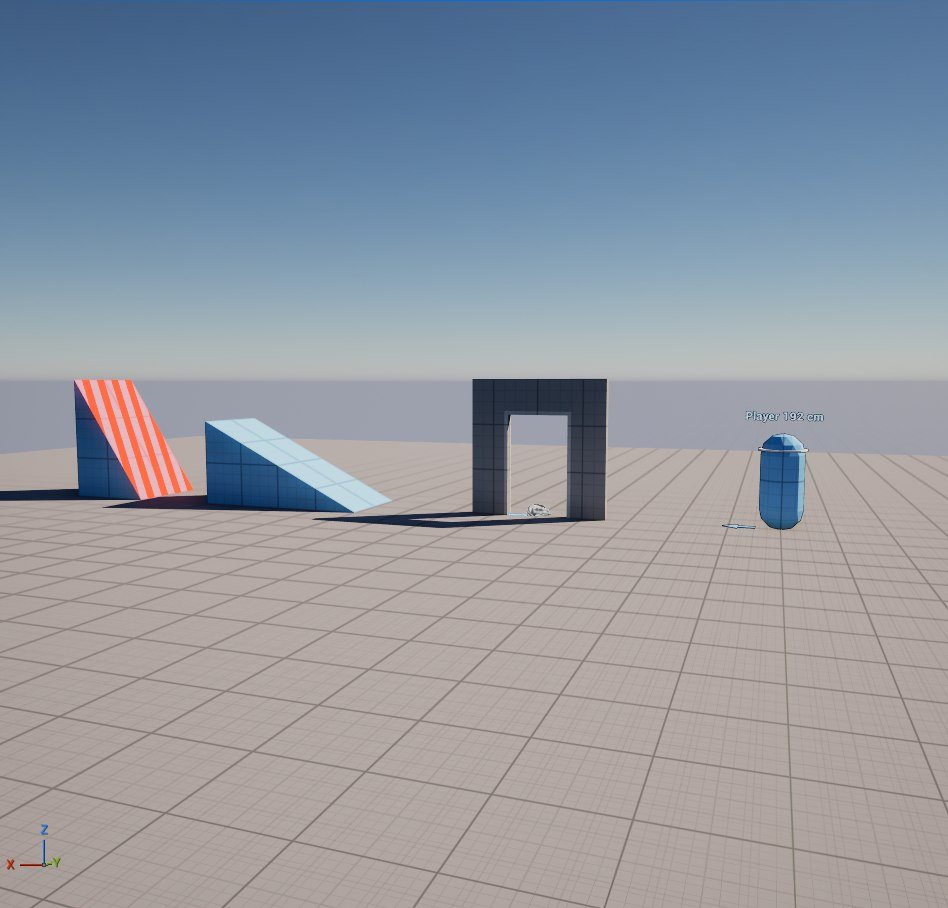
Drag Player Scale (Annotate → Gameplay & Notes) into the level for a quick human-scale stand-in: a standing capsule, an eye-height ring, a forward floor arrow and a height label (like Player 192 cm). Turn on Show Crouched to show the crouched capsule alongside it.
It always reflects your current Player Metrics and is strictly editor-only (never visible in PIE or packaged builds).
Player-Sized tiles
The Player-Sized section on the Create tab builds shapes sized directly from your metrics at placement time:
| Tile | What it places |
|---|---|
| Door (1 player), Door (2 players) | A doorway wide enough for one or two players plus headroom (134 × 222 cm for one player by default). |
| Corridor (1 player), Corridor (2 players) | A Room-role corridor—overlap two to merge them seamlessly. |
| Crawlspace | Sized to crouched height plus comfort margin. |
| Max Step | A box exactly as tall as Max Step Height. |
| Max Jump Ledge | A box at peak jump height. |
| Max Jump Gap | A cutter—drop it on a floor to carve the widest gap the player can clear. |
Steep-slope overlay
Toggle Display → Slopes to stripe any LD shape surface steeper than Max Walkable Slope in red (editor viewports only). Flat floors, walls, markers and notes stay clean. Adjust Max Walkable Slope and the stripes update live.
For quick two-point checks without placing anything, use Measure.