Your first blockout
Build a quick room with a doorway, stairs and a street outside in about five minutes.
This walkthrough mixes features from Lite and Pro so you can get a feel for the workflow right away.
1. Open the mode
Open any level and press Shift+0. The tool panel opens on the left with seven tabs down the side (Create, Edit, Modify, Material, Bake, Annotate and Display). Stay on Create.
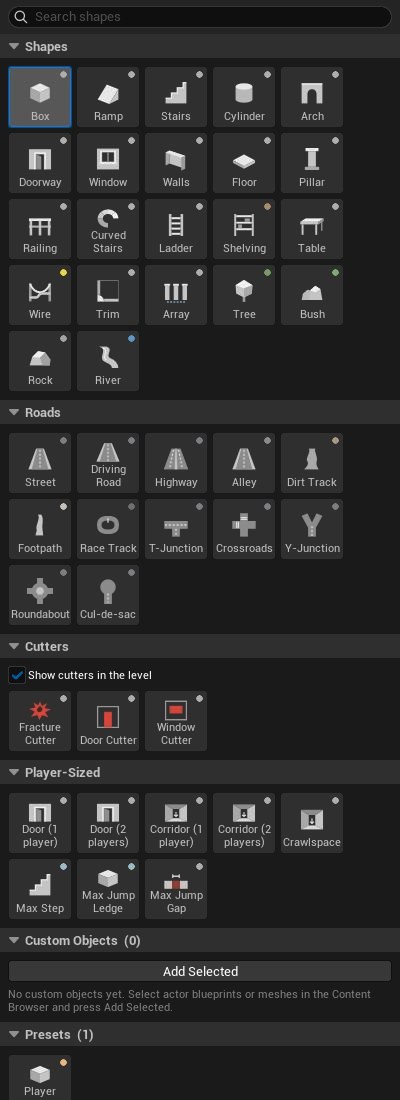
2. Draw the walls
- Double-click the Walls tile to start drawing.
- Click four corners on the floor (hold Ctrl to snap to the grid).
- Press Enter or double-click to finish. If you misclick, Backspace undoes the last point and Esc cancels.
Because Closed Loop is on by default in Details, those four clicks automatically close into a room with mitred corners. Select the walls and try the handles:
- Green dots move individual corners.
- Blue dots slide an entire wall segment.
- Alt + drag any dot adds a new corner right there.
3. Cut a doorway
Find Door Cutter under Cutters and drag it straight onto one of your walls. It sinks in and carves a doorway immediately. Slide it along the wall and the opening follows; delete it and the wall heals right back.
4. Add stairs
Drag a Stairs tile into the room. Use its dots to adjust the width, height, length or step count. If you add a second floor later, tick Cut Floor Above in Details and the stairs will carve out their own stairwell.
5. Lay a street
- Expand Roads, double-click Street and click a few points outside the room.
- Press Enter to finish.
You'll get lanes, curbs, sidewalks and a dashed centre line out of the box. Select the road to see its length, steepest grade and tightest bend right in the viewport.
6. Check it against your player
Switch to Annotate and drag a Player Scale next to your doorway—it matches your project's player height automatically. Then toggle Display → Slopes to highlight any surface too steep to walk up in red stripes.
7. Keep tweaking, or bake
Everything stays live as long as you need it. When you're happy with the layout, open the Bake tab and click Bake to convert selected shapes into regular Static Meshes. See Bake, Collapse, Restore for the full options.
Try it in Pro
Select your stairs and hit Mirror on the Modify tab for a symmetric pair, or click Elements on the Edit tab to extrude a face. Both stay live even if you resize the stairs later.