Junctions
T-junctions, crossroads and roundabouts—placed by hand or generated automatically when roads meet.
Junction tiles
The Roads section includes five junction types:
| Junction | Layout |
|---|---|
| T-Junction | Three arms. |
| Crossroads | Four arms. |
| Y-Junction | Three arms at a fork. |
| Roundabout | A ring road around a central island. |
| Cul-de-sac | A turning circle at a dead end. |
Settings live under Details → Junction:
| Setting | What it does |
|---|---|
| Kind | Switch between the five junction layouts anytime. |
| Profile | Cross-section settings matching a road's (lanes, curbs, sidewalks, markings). |
| Arm Length | How far each arm extends from the centre. |
| Corner Radius | Fillet radius on the curb corners between arms. |
| Crossings | Toggles zebra crossings and stop lines on the arms. |
| Roundabout Radius, Island Radius | Outer ring and central island radii for roundabouts. |
| Turning Radius | Circle size for a cul-de-sac. |
Attaching roads
Drag a road's end point within about 150 cm of a free junction arm and it snaps into place:
- The road adopts the arm's position, height and tangent with a short straight lead-in, so curbs and sidewalks meet cleanly.
- If the road is narrower or wider than the junction, it smoothly tapers over 5 m to match.
- Move or rotate the junction and all attached roads follow.
- Drag the end point away again to detach it.
Roads also snap onto free arms automatically while you draw them.
Roads that join by themselves
You don't always have to place a junction manually—drop a road onto another road and a green snap ring shows how they'll connect:
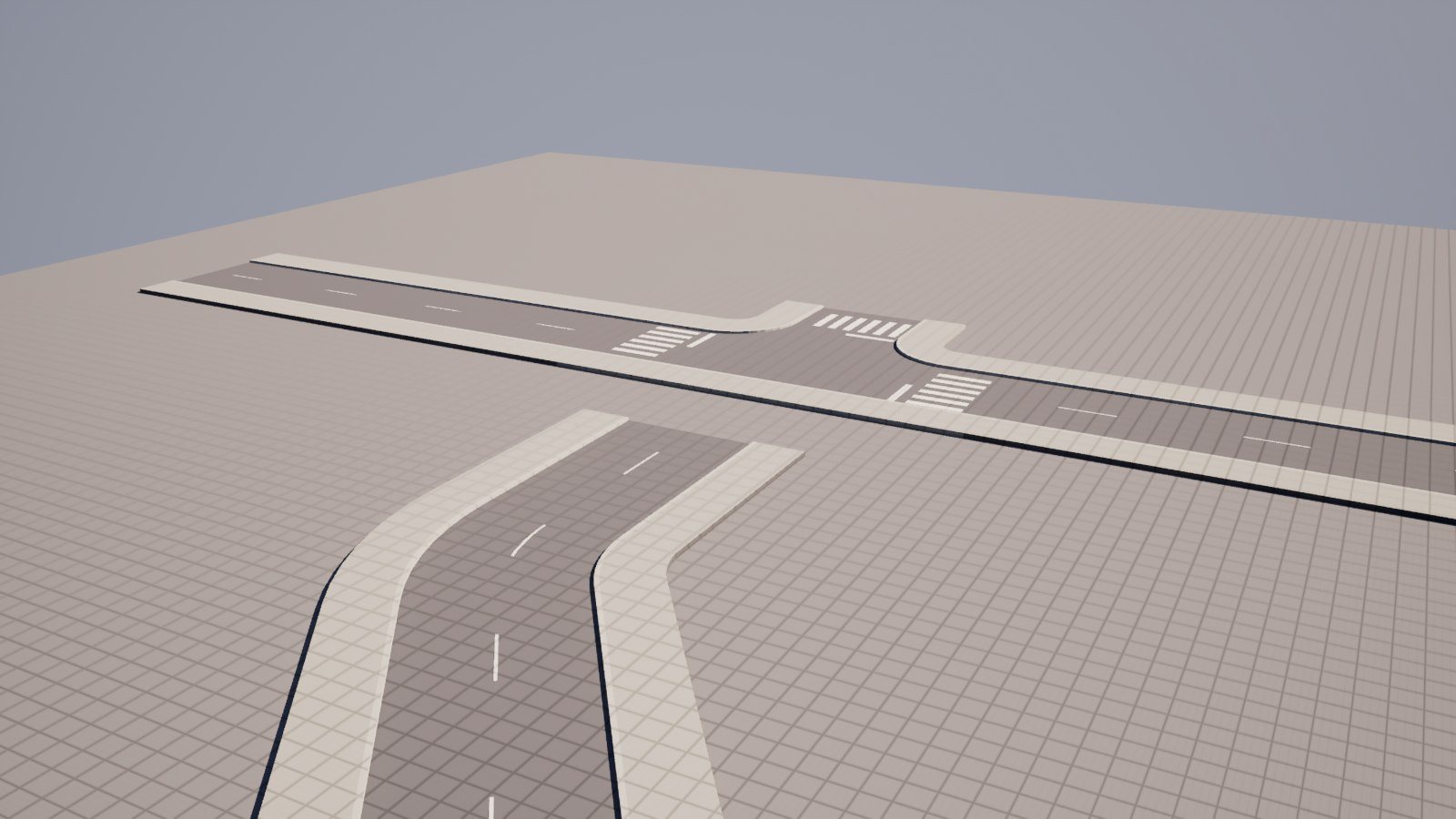
- T-junction: Drop a road's end onto the middle of another road (via handle, gizmo or draw tool). The existing road splits in two and all three meet at a new T-junction.
- New arm: Drop a road's end onto the middle of a junction to add another arm for it.
- Crossroads: Draw a road straight across another road (within 3 m vertically) to create a four-way crossroads where they intersect.
- Continue a road: Drop a road's end onto the free end of another road to merge them end-to-end. (Joined roads can't loop back into a closed ring on themselves.)
Roads and junctions never carve into each other, even if Cut Terrain is enabled.
Editing junction arms
Junction arms behave just like path points:
| Action | Result |
|---|---|
| Drag an arm's point | Moves that arm—any attached road updates with it. |
| Click a selected arm point again, or double-click | Opens the gizmo (rotate and scale turn or stretch arms around the junction's centre). |
| Alt + drag | Adds a new arm. |
| Del | Removes selected arms. |
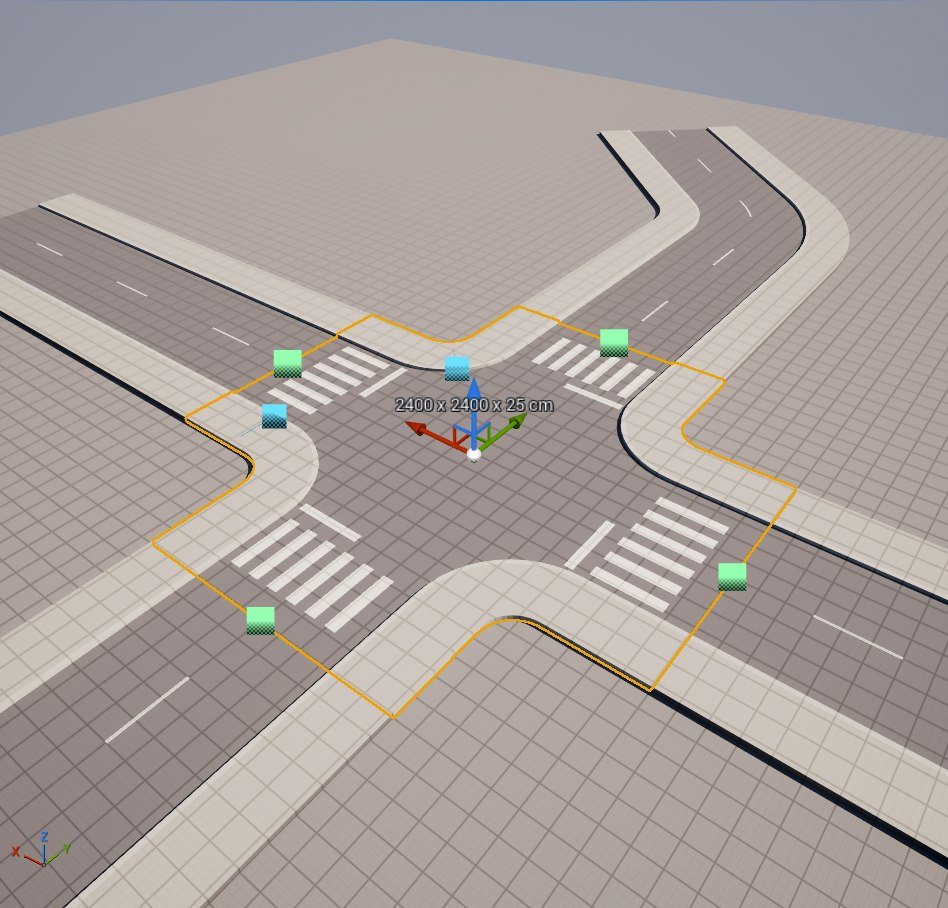
Selected junctions also show viewport dots for arm lengths, corner radius, roundabout ring/island, and cul-de-sac turning radius.
Copying junctions
If you copy and paste a junction together with its connected roads, the pasted roads stay linked to the new junction—not the original. Copy a road on its own and it only keeps its link if that junction arm is still free.