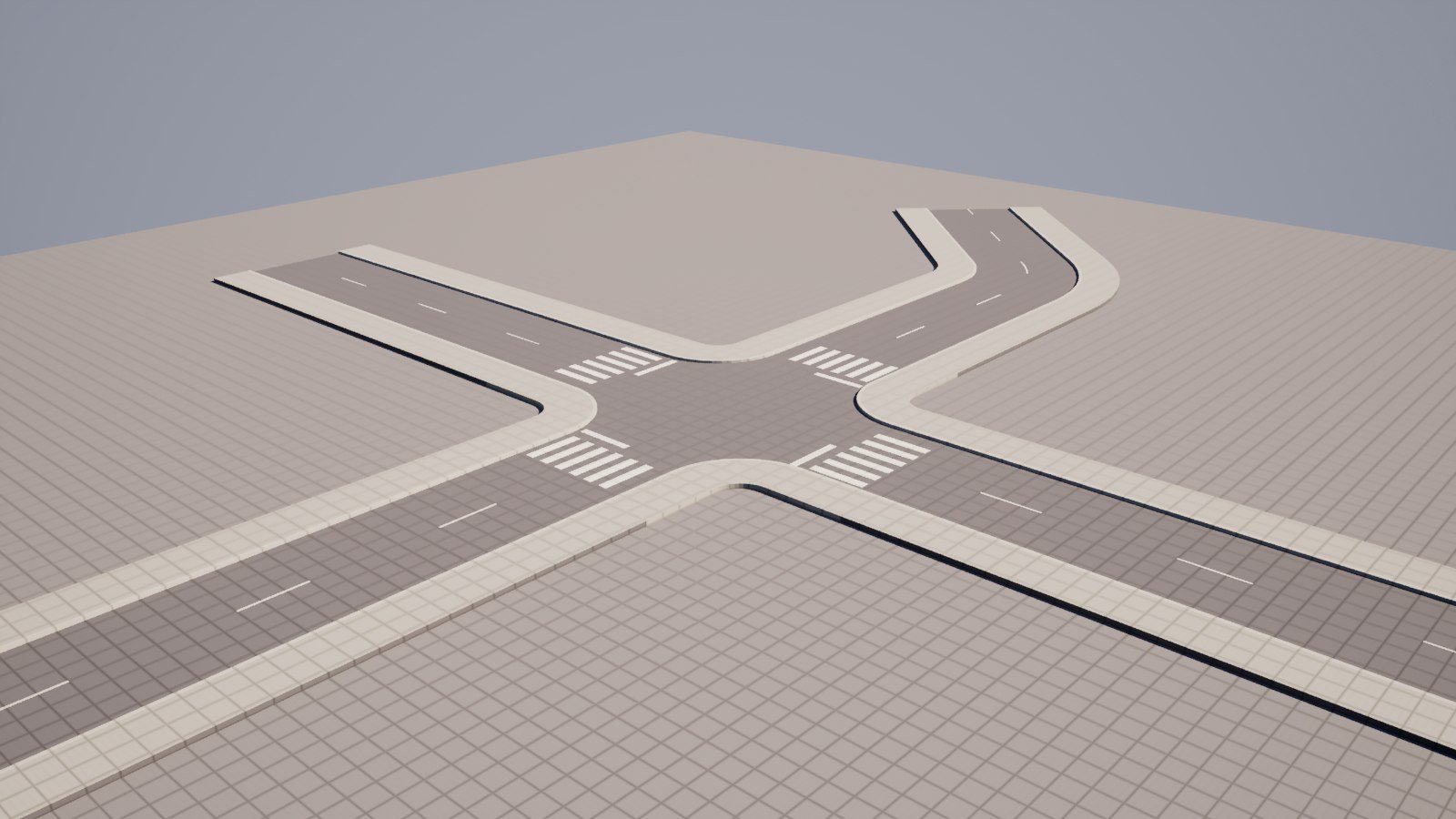
Roads
Streets, highways, dirt tracks and footpaths along curved, sloped and banked paths.
A road is a live LD shape that sweeps a full cross-section—lanes, curbs, sidewalks and painted markings—along a smooth 3D path. Roads snap into junctions, hug the terrain, carve tunnels and build bridges automatically, in both Lite and Pro.
Road styles
The Roads section on the Create tab includes seven ready-made styles, each with its own cross-section and readout limits:
| Style | Preset setup |
|---|---|
| Street | Two 350 cm lanes, 15 cm curbs, 250 cm sidewalks, dashed centre line. Max grade 12 %. |
| Driving Road | Two 365 cm lanes, 100 cm shoulders, no curbs, Auto Bank on. Max grade 8 %. |
| Highway | Two lanes each way, 300 cm median, 250 cm shoulders. Max grade 5 %. |
| Alley | Single 400 cm lane, no markings. |
| Dirt Track | 450 cm wide, rounded brown edges, no markings. |
| Footpath | 200 cm wide, raised 5 cm, grass-green edges. |
| Race Track | Closed loop, 1200 cm wide, red-and-white kerbs. |
Switching Style in Details swaps in that preset's settings; Custom keeps whatever you've configured.
Drawing a road
- Double-click any road tile.
- Click points through the level (hold Ctrl to snap, Backspace to undo a point).
- Press Enter or double-click to finish (Esc cancels).
Start and end points snap onto junction arms and the open ends of other roads as you draw—see Junctions.
You can also drag a road tile straight into the level and reshape it with its handles. While dragging a point, the road displays a lightweight deck preview so interaction stays responsive, then rebuilds the full detail as soon as you let go.
Shaping the path
Found under Details → Path:
| Setting | What it does |
|---|---|
| Points, Point Heights | Control points for the road. Move them in 2D with handles, or lift them with the point gizmo. |
| Point Banking | Per-point tilt in degrees (also set by rotating a point with the gizmo). |
| Closed Loop | Connects the end back to the start for ring roads and tracks. |
| Min Curve Radius | Minimum arc radius for corners. Tighter bends widen automatically to fit the road's width, and the readout flags it. |
| Smooth Grade | Rounds vertical crests and dips over this distance. |
| Auto Bank | Automatically banks the road into curves using the bend radius and Design Speed. |
| Max Grade | Slope threshold before the readout warns you. |
Banking pivots around the road's low edge so the outer edge lifts up rather than dipping below the ground.
The cross-section
Found under Details → Road → Profile, with separate left and right controls where useful:
- Lanes: lane count per side, lane width, median and shoulders.
- Edges: left/right curb height and width, plus sidewalk widths. Without a curb, a sidewalk becomes a verge sitting 2 cm below the road surface.
- Surface: deck thickness, Crown (a subtle centre hump) and Rounded Edges for dirt tracks.
- Markings: centre line (None, Solid, Dashed, Double), lane lines, edge lines, width, dash length and gap. Markings sit 1 cm above the surface.
- Colors: separate colours for curbs, sidewalks and markings (the road surface uses the shape's main colour).
Select a road in the viewport to reveal handle dots for lane width and sidewalk width too.
The readout
When you select a road, its viewport label displays length, steepest grade, tightest bend and widest bank instead of a bounding box size. Any value that exceeds the style's limits turns amber.
With Display → Slopes turned on, footpaths steeper than your player's walkable slope get red stripes.
Collision
Roads use exact mesh collision by default so vehicles and characters roll smoothly over curbs, crowns and banks.
Pro extras
Pro
Road faces carry stable names (Deck, CurbL, SidewalkR, Marking_3...), so element edits stay anchored even as you reshape the path. Modifiers work on roads just like any other shape.