Edit Elements Pro
Push, pull and bevel faces, edges and vertices—with edits that replay when the base shape changes.
Edit Elements gives you ProBuilder-style direct modelling on any LD shape. Because every edit is recorded as an operation rather than baked raw geometry, changing the shape's base parameters later replays your edits right on top.
Entering and exiting
Select a single LD shape and click Elements on the Edit tab (or Details → Element Edits → Edit Elements).
A compact floating strip appears at the top left of the viewport, just below the toolbar. It displays the active shape, selection info, pick-mode toggles, operation buttons and a Done tick at the end. Hover over any button to see its tooltip and shortcut.
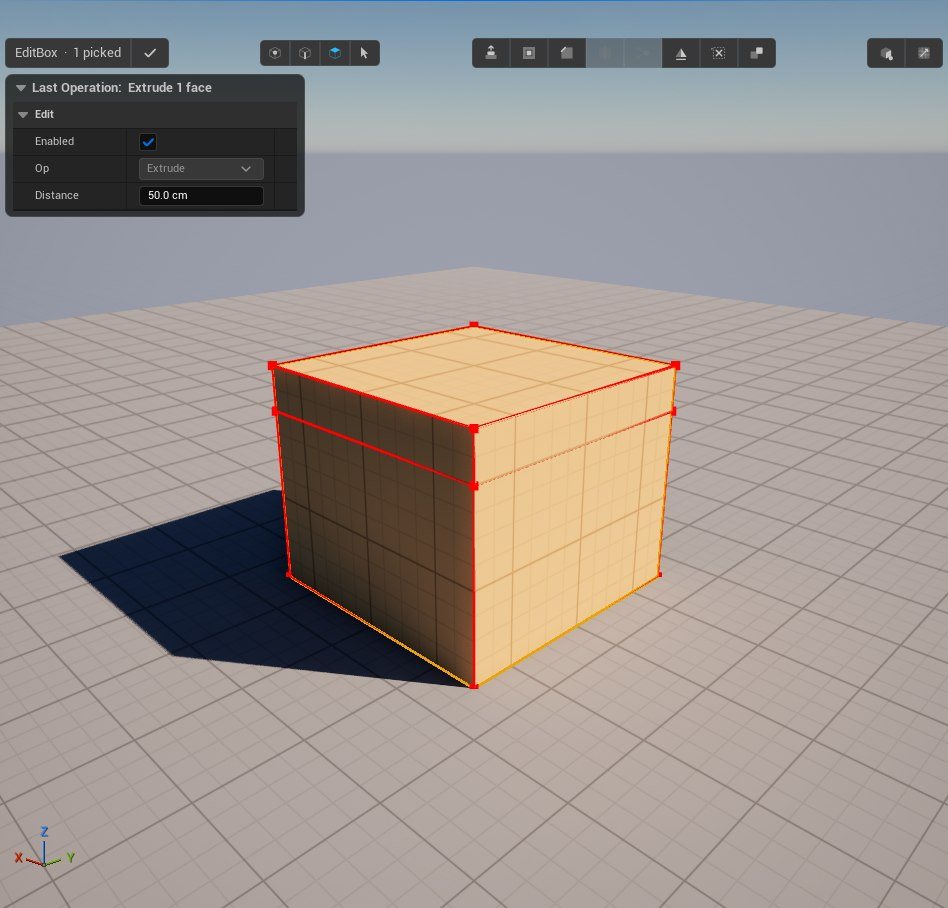
While editing, modifiers, cuts and resize handles step out of the way so you can work cleanly on the base geometry. Click Done—or press Esc with nothing selected—to exit.
Selecting elements
| Action | Result |
|---|---|
| Hover | Preview the face, edge or vertex under the cursor. |
| Click | Select it. |
| Shift + click | Add to the selection. |
| Drag a marquee box | Select everything inside. |
| 1 / 2 / 3 / 4 | Switch between vertices / edges / faces / any (same as the first four strip buttons). |
| Esc | Clear selection. |
A move / rotate / scale gizmo aligns to your selection. Drag it for a live preview, and release to record the edit.
Operations
Buttons disable automatically when your current selection doesn't match what the tool needs.
| Operation | What it does |
|---|---|
| Extrude | Pulls faces out (or pushes a pocket in with a negative distance). New faces stay selected so you can chain extrusions. |
| Inset | Insets a smaller face inside each selected face—combine with a negative Extrude for clean recessed panels. |
| Bevel | Bevels selected edges. |
| Insert Loop | Cuts an edge loop around the faces sharing the selected edge. |
| Weld | Collapses selected vertices—or an edge—into a single point. |
| Flip | Reverses face normals. |
| Delete | Deletes selected faces (Del works too) without ever deleting the actor itself. |
| Detach | Splits selected faces off into their own Editable Mesh actor. |
| Material | Assigns a per-face material (see Face materials and UVs). |
| UV | Adjusts per-face UV projection. |
Last Operation
Right below the strip, a Last Operation card exposes the parameters for whatever you just ran (extrude distance, bevel segments, UV tile size, etc.). Adjust them live to fine-tune the result, or collapse the card out of the way.
How edits stay live
Edits live under Details → Element Edits and replay before modifiers and cuts on every rebuild:
- Extrude the top of a Box, then change Size—the extruded cap rides along with the new top.
- Extrude
Tread_3on Stairs, then bump Num Steps—step 3 keeps its edit. - Stack an Array modifier on top—every copy inherits the edits.
This works because shapes with stable topology (Box, Walls, Floor, Stairs, Doorway, Window and Road) tag their faces by name (Top, Front, Seg2.Left, Tread_3, Frame.Front, Deck, CurbL...). Faces generated by an edit get named after that edit too, so edits can stack cleanly on one another.
Managing the Element Edits list
Every edit shows up in Details → Element Edits:
- Untick an edit to mute it, delete it with the bin icon, or expand its row to tweak its values.
- If a base change removes the faces an edit relied on, the row flags Not found (or Some elements not found) in orange—never silently throwing your work away.
Presets and Repeat Last preserve element edits, and Collapse bakes them into the mesh.
Good to know
- Delete and Detach open up the mesh; open shapes don't cut or get cut reliably, since booleans expect closed solids.
- Weld collapses shared edges cleanly; vertices that don't share an edge are just moved to the same spot.
- Insert Loop runs on the first selected edge.
- Shapes without named faces (like Cylinder or Arch) can lose track of an edit if you change a setting that reshuffles face indices (like side count)—any orphaned edit gets flagged in orange.