Handles and points
Resize shapes, shift path points and use the 3D point gizmo right in the viewport.
Select any LD shape while in Kami's LD Tools mode and its handles light up. Drag any dot to edit the shape live—a readout shows the exact value as you drag. Hold Ctrl to snap to the grid, even if grid snapping is turned off.
Kinds of dots
| Dot | What it controls |
|---|---|
| Size dots | Sit on faces of boxes, ramps, stairs and similar shapes. Drag to resize that side. |
| Count & angle dots | Adjust step counts, arch segments, curved-stair angles, door open angles and similar values. |
| Green point dots | Control points on path shapes (Walls, Floor, Trim, Array, Wire, River, Line Path, Road, Jump Check). |
| Blue side dots | Sit at the midpoint of each path segment. Drag one to slide that entire wall or edge. |
Working with points
| Action | Result |
|---|---|
| Click a green point | Select it. |
| Ctrl + click | Multi-select points (dragging one moves them all together). |
| Alt + drag a point or side dot | Insert a new point there. |
| Del | Delete selected points. |
| Esc | Clear your point selection. |
The point gizmo
Path shapes like roads, rivers, wires, line paths and jump checks support per-point elevation—and roads support banking—so a flat 2D drag isn't enough. That's where the 3D point gizmo comes in:
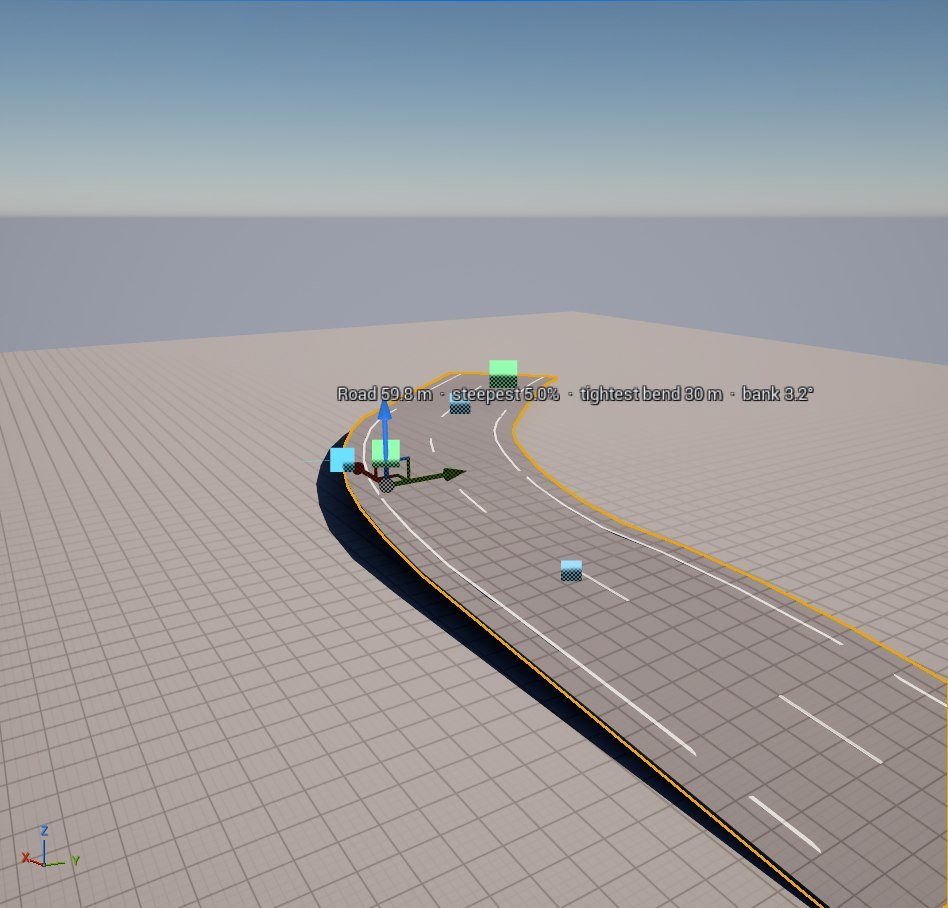
- Click a point to select it.
- Click it again (or double-click it) to attach the gizmo.
- Use W, E and R just like a normal actor gizmo:
- Move slides the point across the ground or lifts it up and down.
- Rotate spins selected points around their centre. On a road, tilting the gizmo along the road's direction banks it at that point.
- Scale spreads selected points apart or pulls them closer together.
This works on every path shape, as well as junction arms.
In the Details panel
Every handle maps to a property under Details → Shape, so you can always type exact numbers there too. Path coordinates live under Points (X, Y) and Point Heights where supported.